Installer Dashboard
The dashboard is the first place that you reach when you log in. It contains most of the links and info you will need throughout your day in order to complete all of your tasks.
Notifications
The first place you should look after logging in is the Notifications section. In this section will be all of the un-read notifications that you’ve received. They are color-coded to go from least significant (White) to most significant (Red).
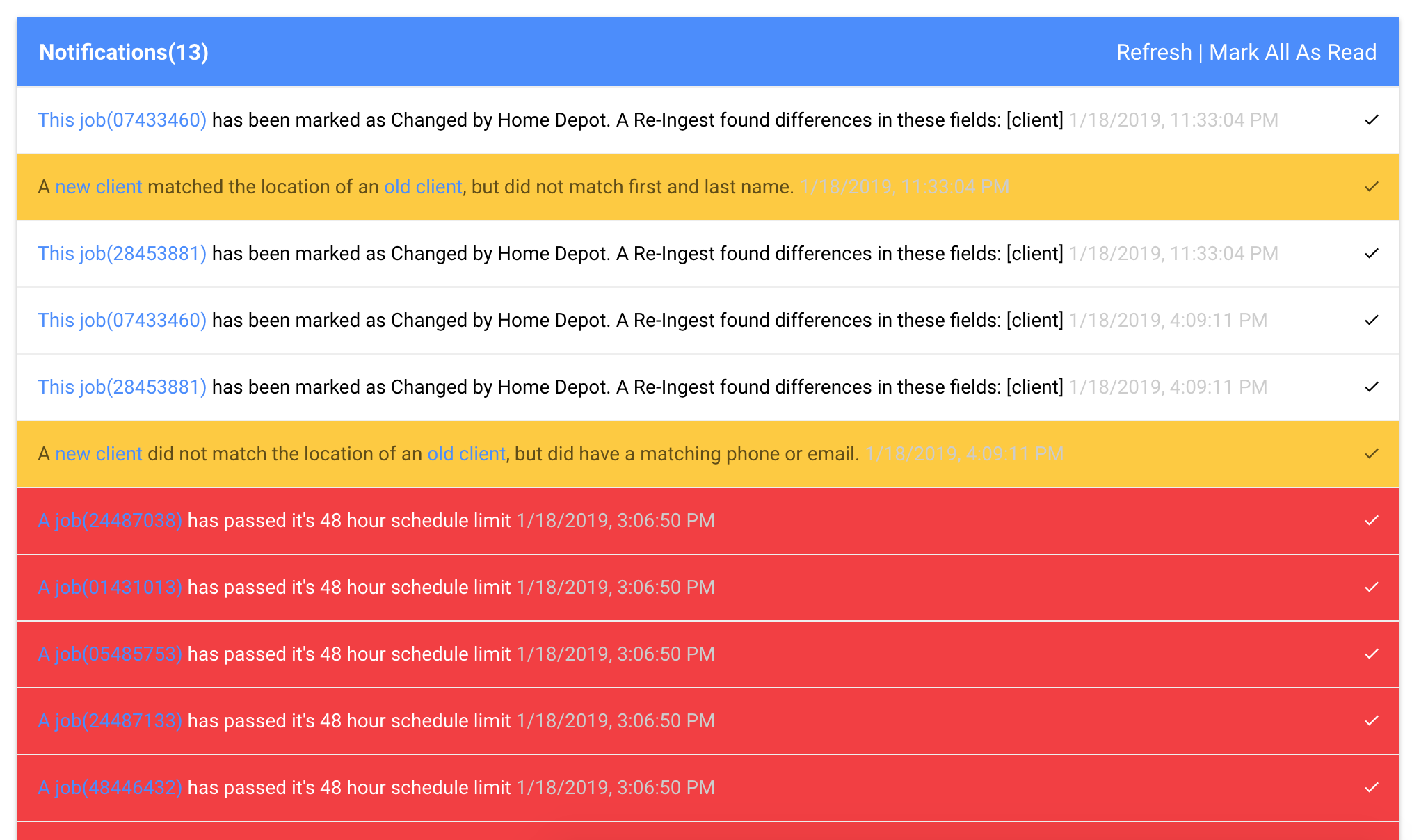
When you are finished with a notification, you must click the  on the right side of the notification item. Once you click this check mark, the notification will be cleared from your list. You won’t be able to see the content of this notification after you mark it as read, so make sure to leave it un-read if you need it as a reminder to do something later.
 Also, notifications will never be cleared automatically. So if the notification is that a job has not been completed, and the job is subsequently marked as completed, the notification will still be there. You must separately mark each notification as read to clear it from your list.
Today’s Jobs
For each day, the Installer dashboard will show you exactly what jobs are scheduled for today. You can use this section of the dashboard to get an idea of where you will be throughout the day and how many jobs you have scheduled.
Needs Scheduling
The Needs Scheduling section displays all of jobs that have been sent to you by an administrator that do not have a schedule date. It is your responsibility to click on each of these jobs, call the client, and pick a date and time to schedule this job. You can bring up the scheduler by clicking on the todolist Schedule Job button.