New User Flow
This page describes the steps required to add new users to the Blinds Portal. Follow these steps in order to enable new hires to access the portal.
Installers and Admins
- Instruct your new hire to navigate to your personal Blinds Portal instance url. It is usually something like
xyz.blindsportal.com - New
InstallersorAdminswill sign up for a new account by clicking the “Sign Up” button.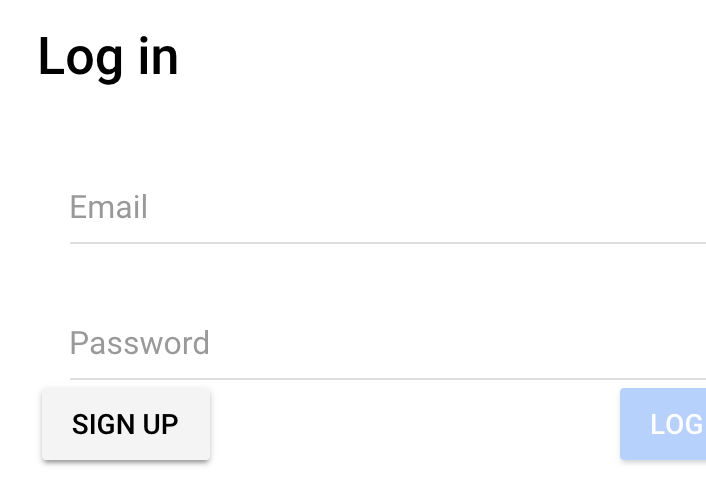
- They must then fill out the form with accurate information.
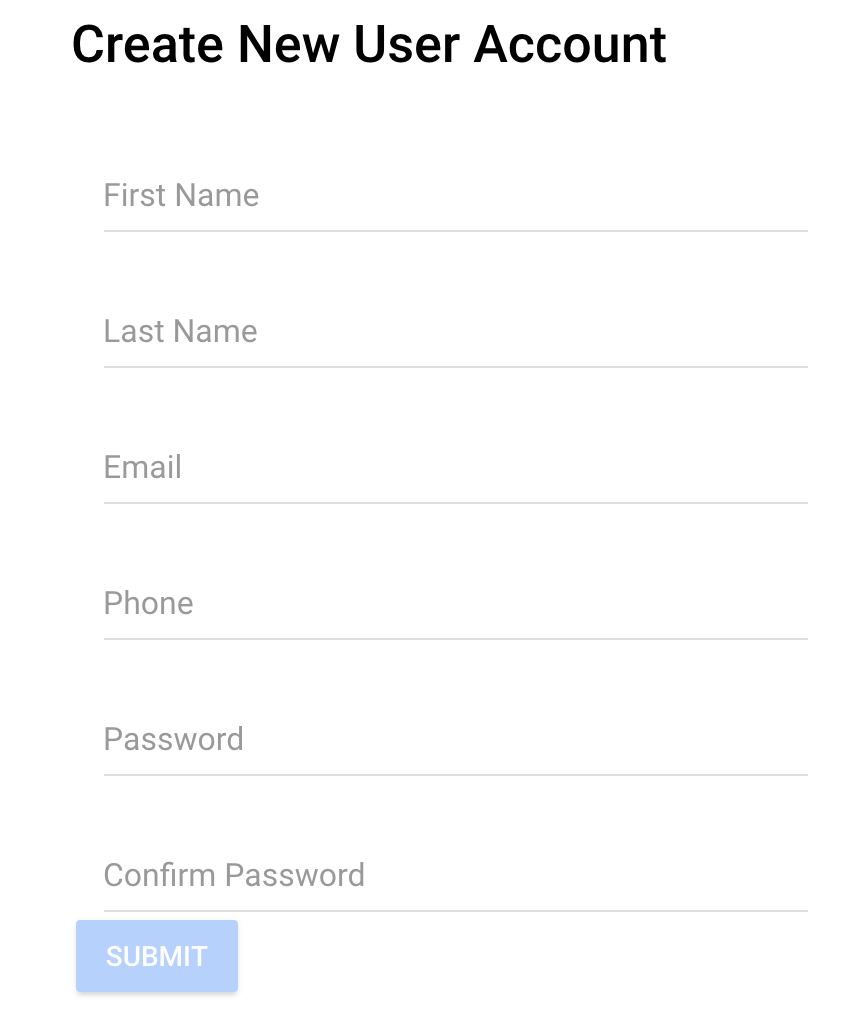
- That
Userwill then be sent an email confirmation to confirm they actually own the email they signed up with. - When the
Userclicks the confirmation link, theirAccountwill be marked asPENDINGin the Portal.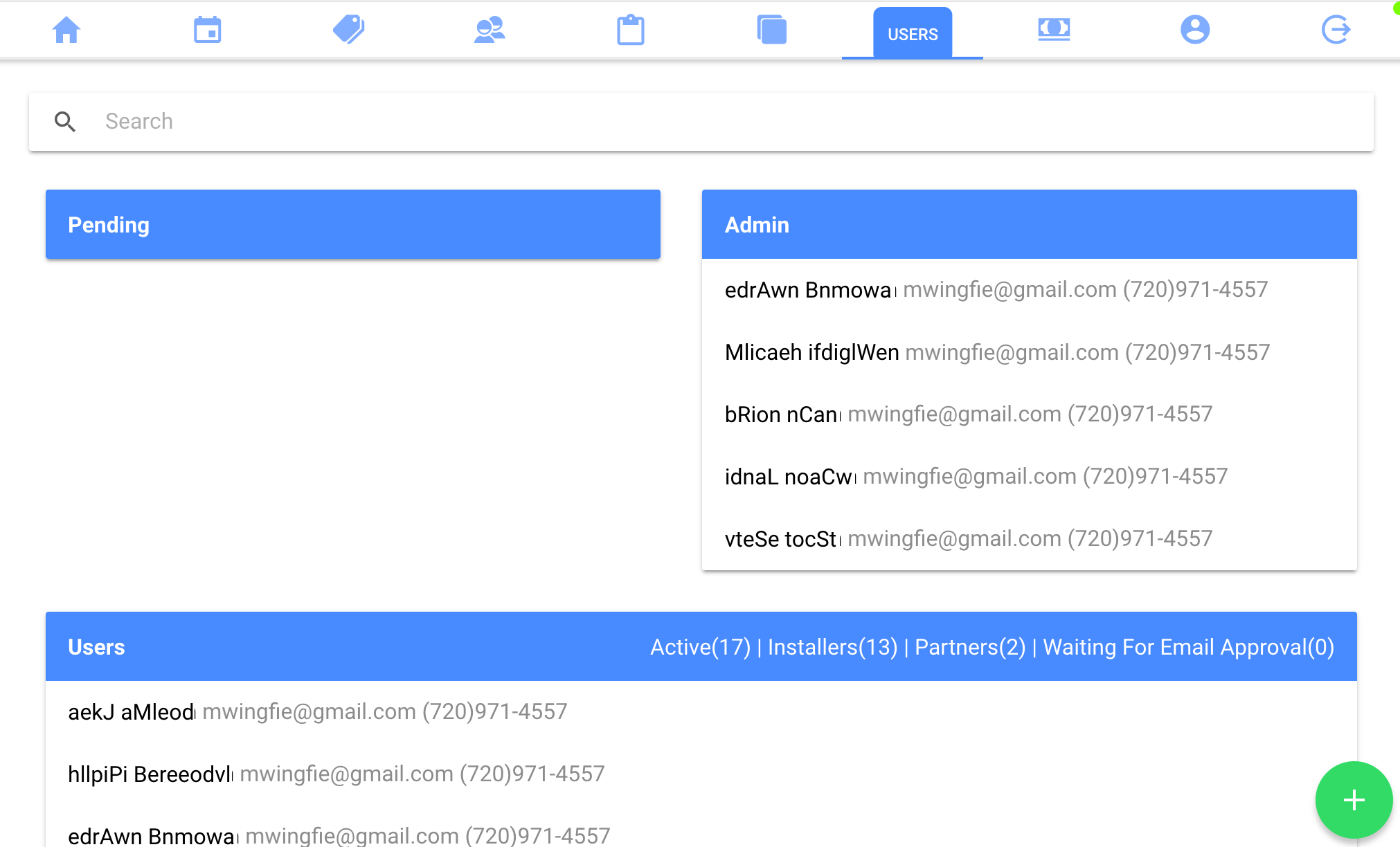
- An
Adminuser will need to select the newUseron theUserspage to see their detailedAccountpage.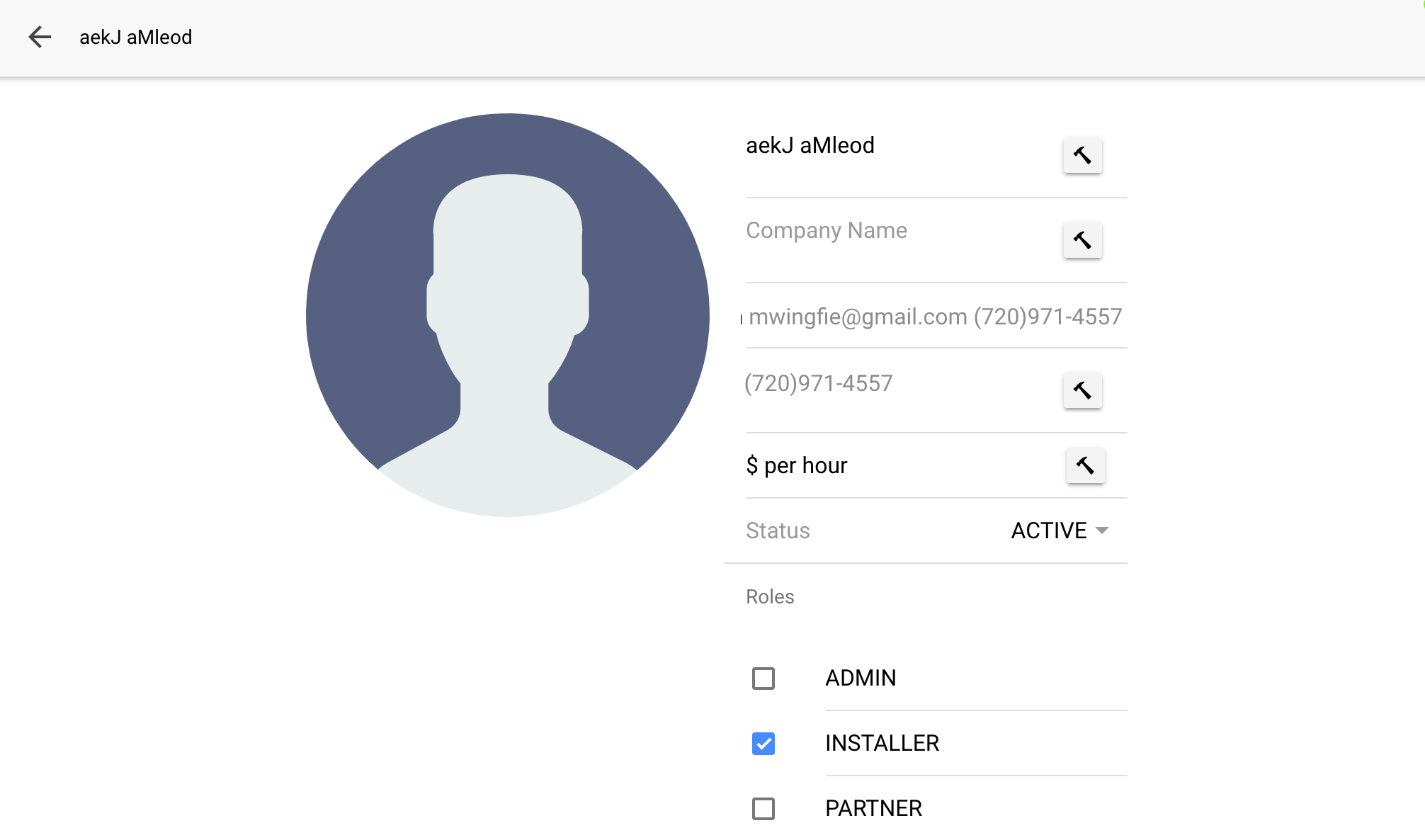
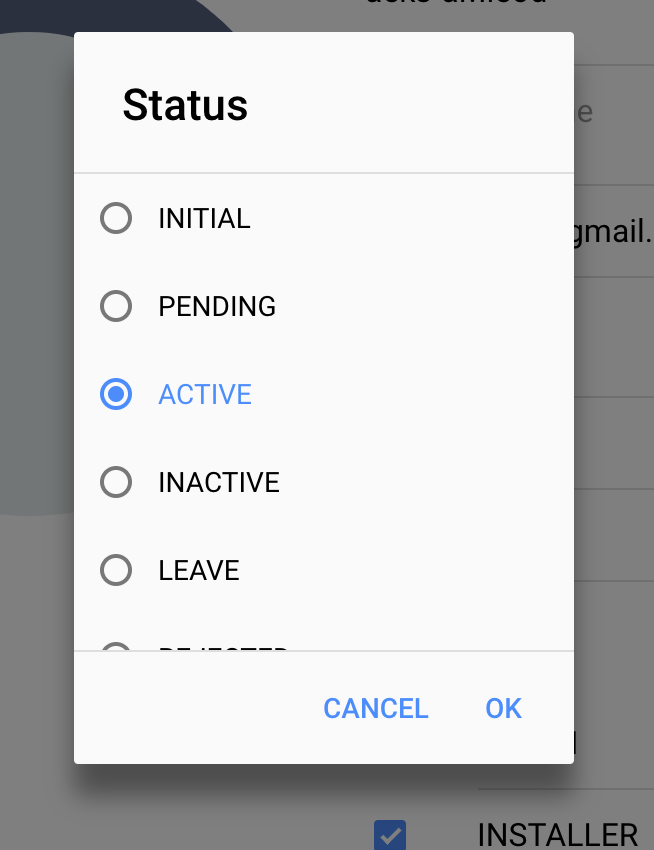
- From the
Accountpage, theAdminwill need to change theUser'sstatus toACTIVEand click either theInstallerrole or theAdminrole (you can use both if the new user is both anAdminand anInstaller) - The new
Userwill get an email notification that their account has been approved and they can now log in and start using the Portal.